Where to configure it
In the account Settings, open the Brand tab. That is where the elements of the notice shown by the browser live, when a site from the block list is accessed. Empty fields fall back to the Vigilioo default.
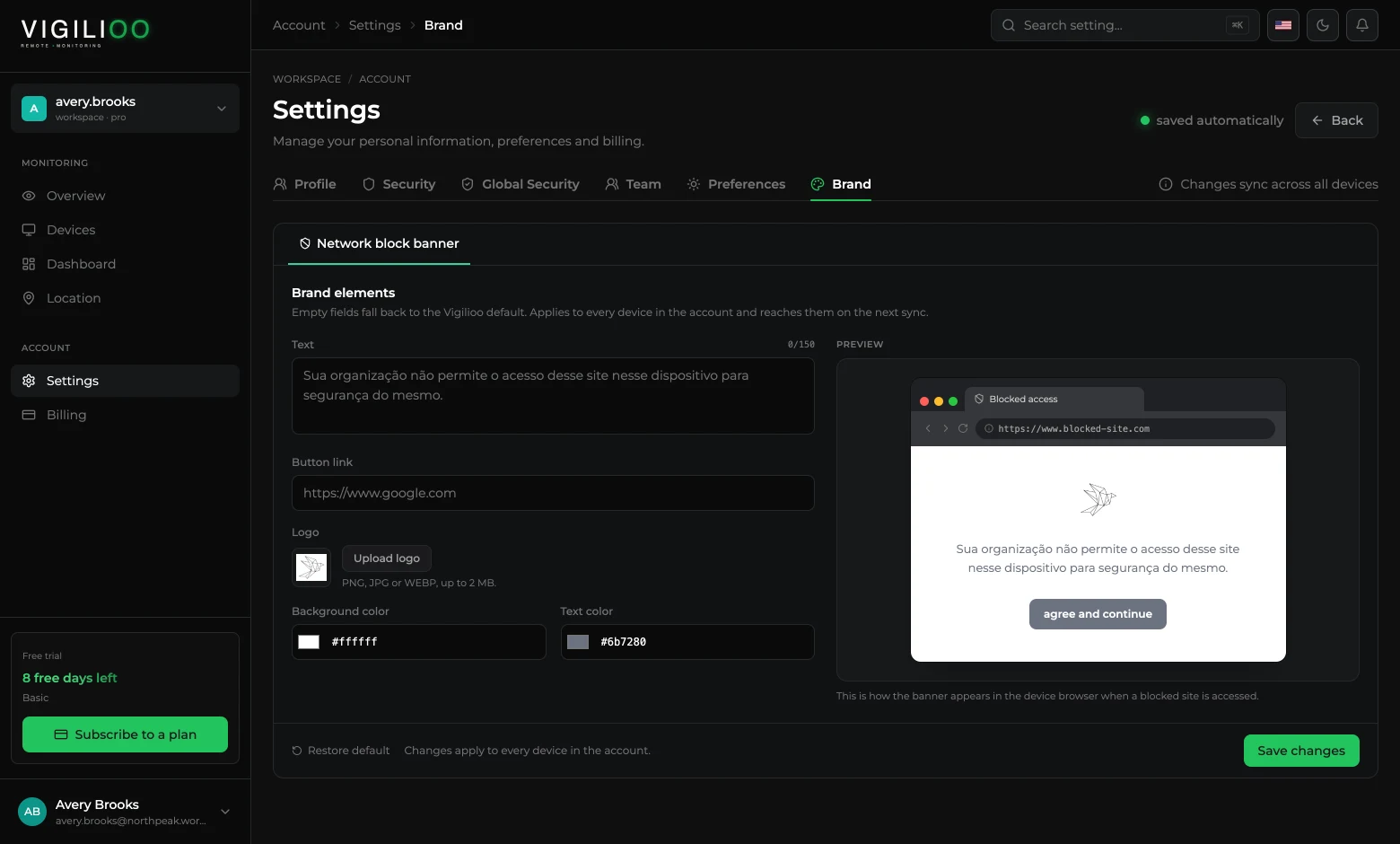
What you can change
- Text — the message shown, up to 150 characters.
- Button link — where the notice button leads, such as the internal usage policy.
- Logo — PNG, JPG or WEBP up to 2 MB.
- Colours — background and text of the notice.
- 1Fill in the fields and follow the preview.
- 2Click Save changes.
- 3The customisation applies to every device in the account and reaches them on the next sync.
Writing a good block message
A short message that explains the reason and points to the internal policy settles most questions before they become a ticket. Avoid a punitive tone: the notice is informative, not disciplinary.
Restore default brings the notice back to the Vigilioo standard at any time, without losing the block lists.
Frequently asked questions
- Is the customisation per device?
- No. The notice branding is set once and applies to the whole account. The blocked site lists, on the other hand, are per device.
Up next
Compensation: cost per hour of a device
Set an hourly rate or a fixed salary per device and follow what the operation costs, based on the hours actually recorded.
Keep reading