How the device screen is organised
Click any device in the list to open its screen. The header carries the status and the time measured today, this week and this month; below it, a row of tabs separates each kind of data.
| Tab | What you find |
|---|---|
| Captures | Screen captures grouped by hour, with the program in focus. |
| Activity | The day's usage curve, most used apps and visited sites. |
| Settings | The device policies — the subject of the next guide. |
| Compensation | Cost per hour worked and overtime rules. |
| Folders | Folders and files, when disk mapping is on. |
| KeyLogger | The writing mapping, when the policy is on. |
| Location | Where the device has been, with date and time. |
Screen captures
This is the first tab, and the most visited. The calendar at the top picks the day; the bar right below shows how captures are spread across the 24 hours; the images come next, grouped by hour range.
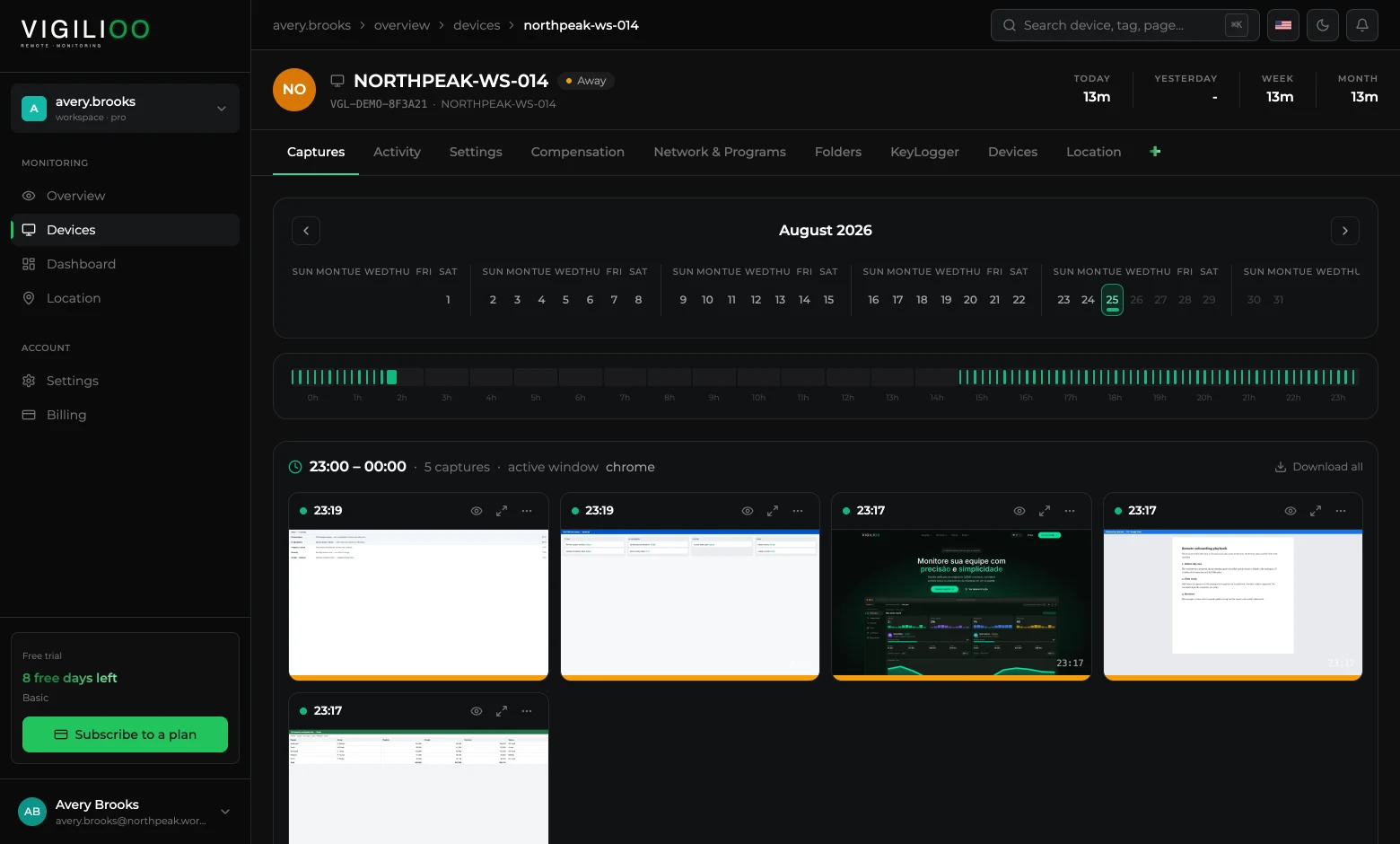
- Click a thumbnail to open the capture at full size.
- Use Download all to export the captures of that hour range.
- Capture frequency is set per device, in the Settings tab.
Activity, apps and sites
The Activity tab answers “how long was this machine actually used”. Active time counts real keyboard and mouse events — a long pause does not make it into the total.
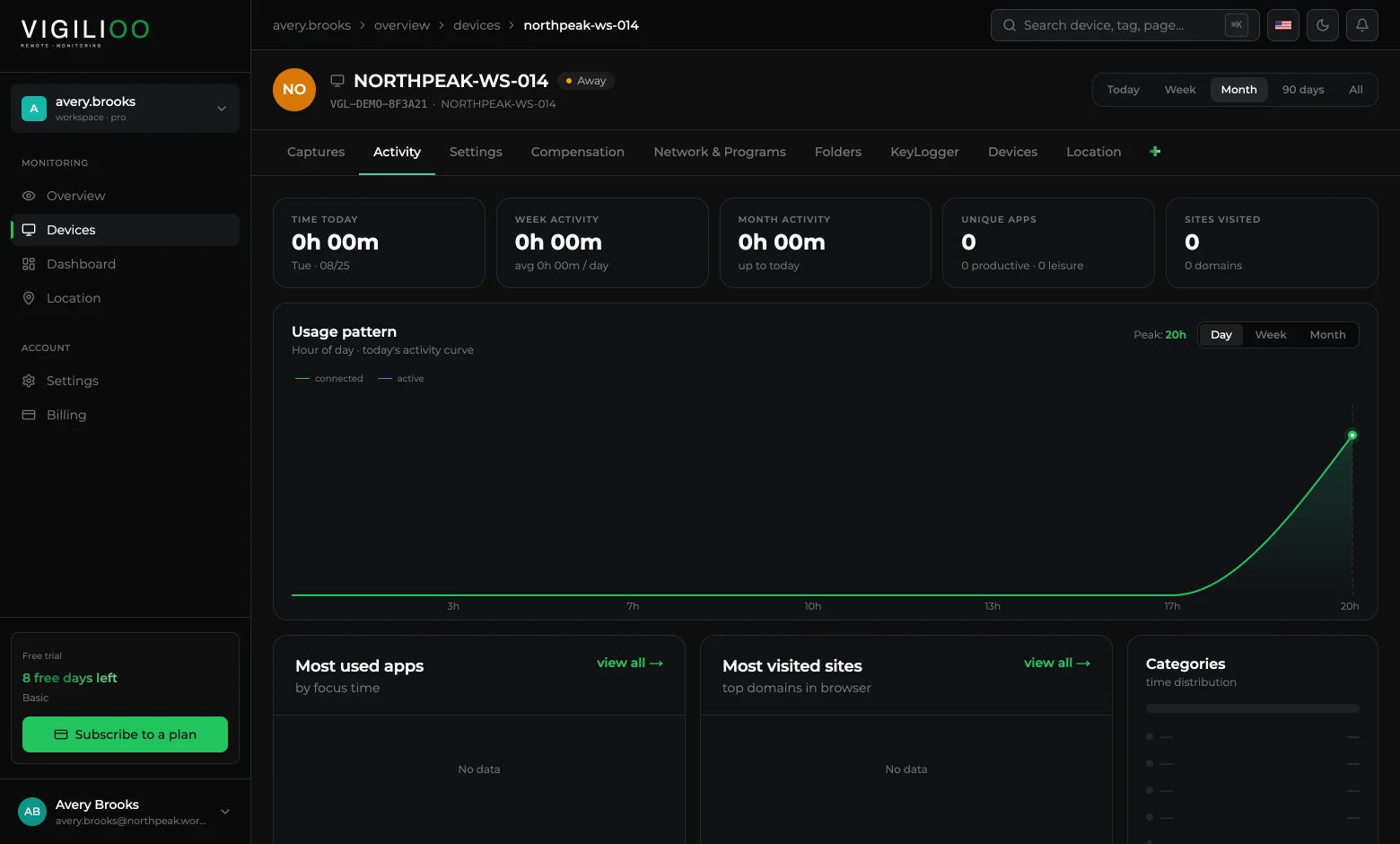
- Usage pattern — the hour-by-hour usage curve, with the peak of the day.
- Most used apps — programs by focus time.
- Most visited sites — the domains opened in the browser.
- Categories — how time is split between work and leisure.
Writing mapping
When the writing mapping policy is on, the KeyLogger tab organises records by day, with the period total in the header.
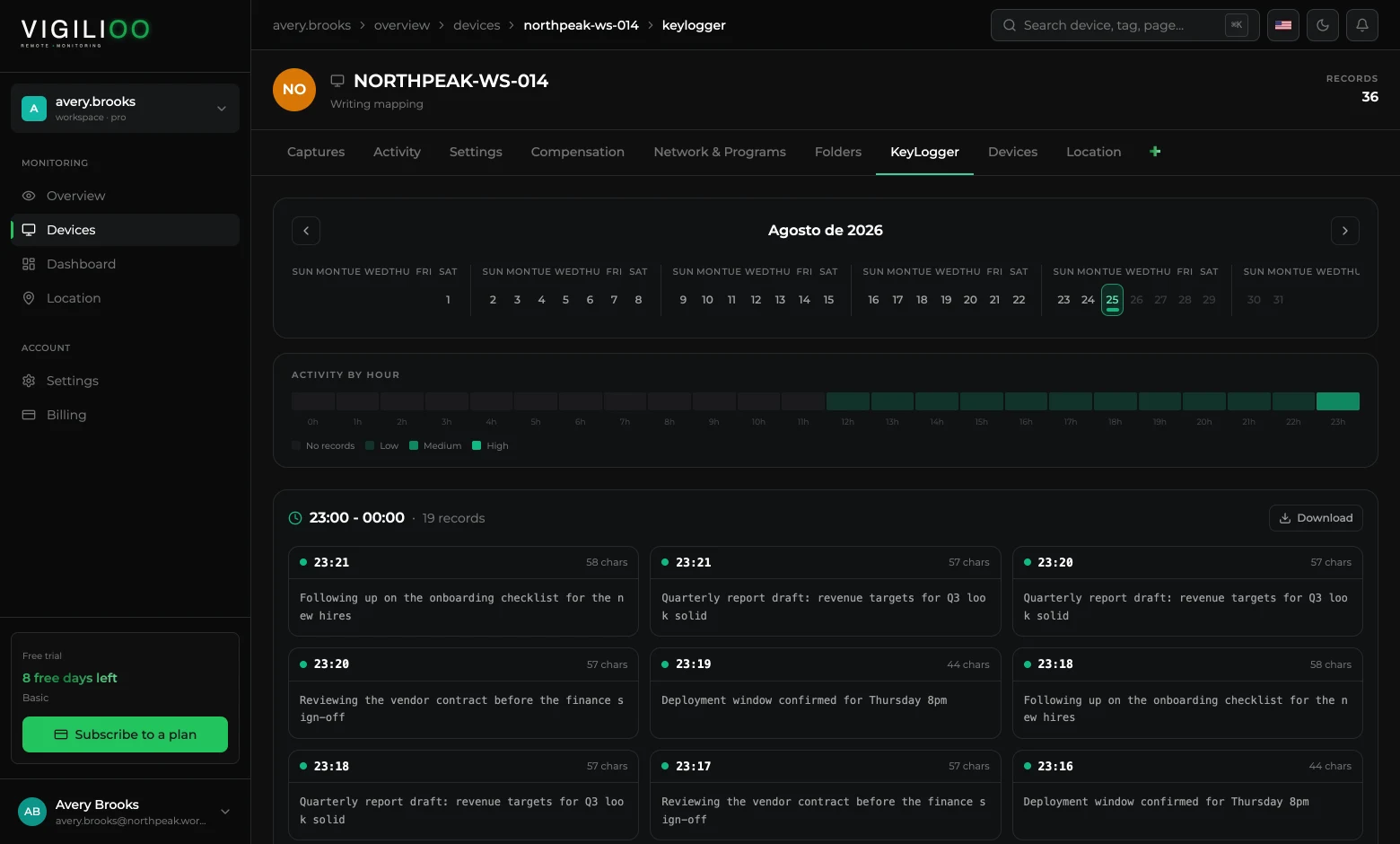
Typing records are the most sensitive data on the platform. Use it with a stated purpose, a defined retention period and access restricted to whoever needs it.
Location
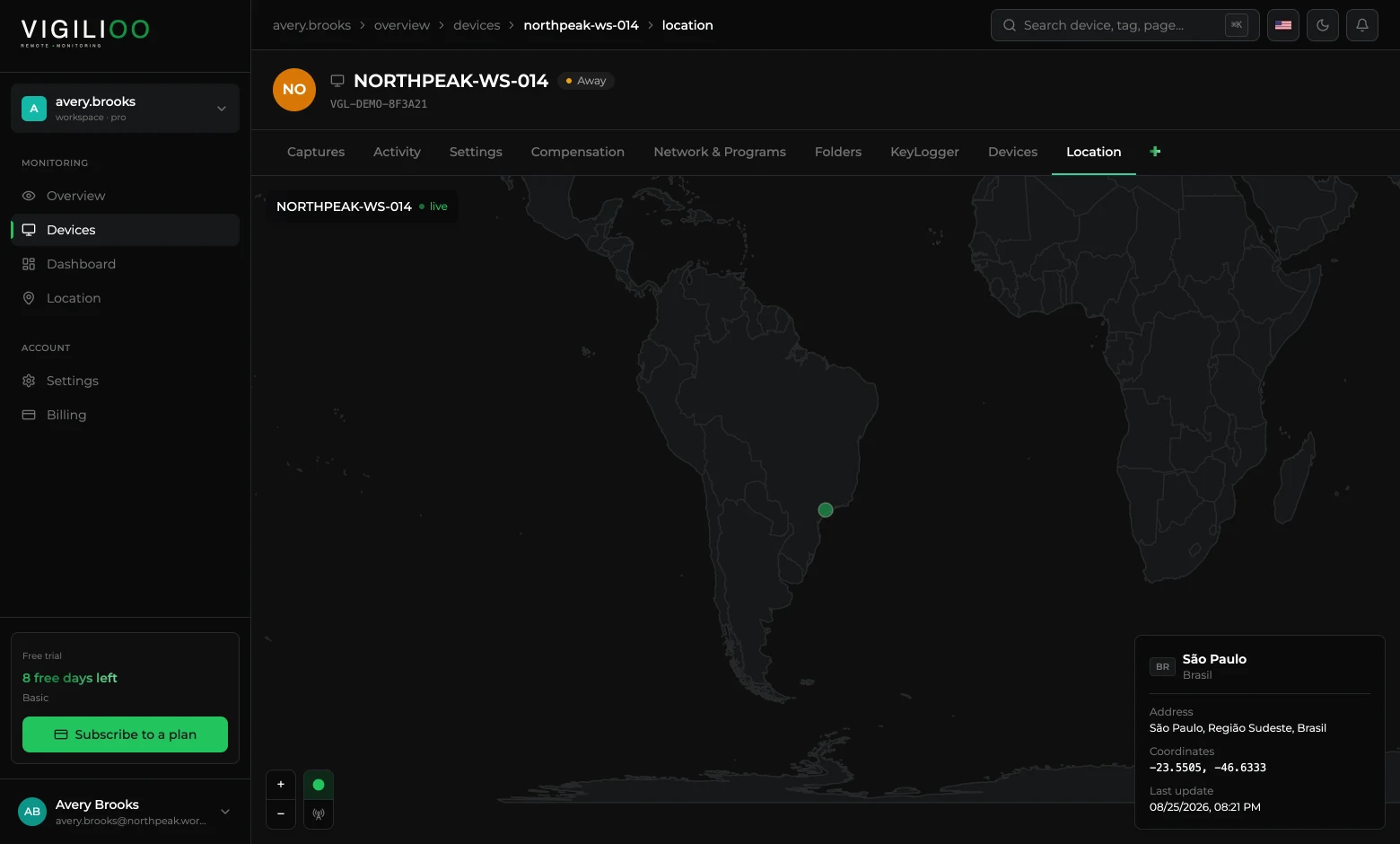
The Location tab shows where the device has been, with an approximate address, coordinates and the time of the last update. It is how you confirm where the remote team is working from and how you react to lost equipment.
Frequently asked questions
- Why are some tabs empty?
- Because they depend on a policy being on. Folders require disk mapping; typing requires writing mapping. Turn it on in the device's Settings tab and the data starts arriving in the next cycle.
- Can I export what I am seeing?
- Yes. Captures can be downloaded per hour range, and the device list has its own export, through the Export button.
- How often does data arrive?
- The agent reports every 15 seconds. Screen captures follow the interval configured on the device, from 1 to 60 minutes.
Up next
Configure the device policies
Everything that is switched on and off on a machine: screen capture, ports and radios, disk, typing, AI, blocked sites and programs, and the emergency actions.
Keep reading