Before you start
Installation takes under five minutes per machine and requires no network configuration. What you need at hand:
- An account on the platform — the free period already allows connecting devices.
- Local administrator access on the computer to be monitored.
- Windows 10 or 11 with an internet connection. The macOS and iOS agents are not available yet.
Tell the team before you install
Monitoring corporate devices requires transparency: state who will be monitored, what is collected and why. That is what data protection law expects and what prevents internal friction later.
Step 1 — open the installer generator
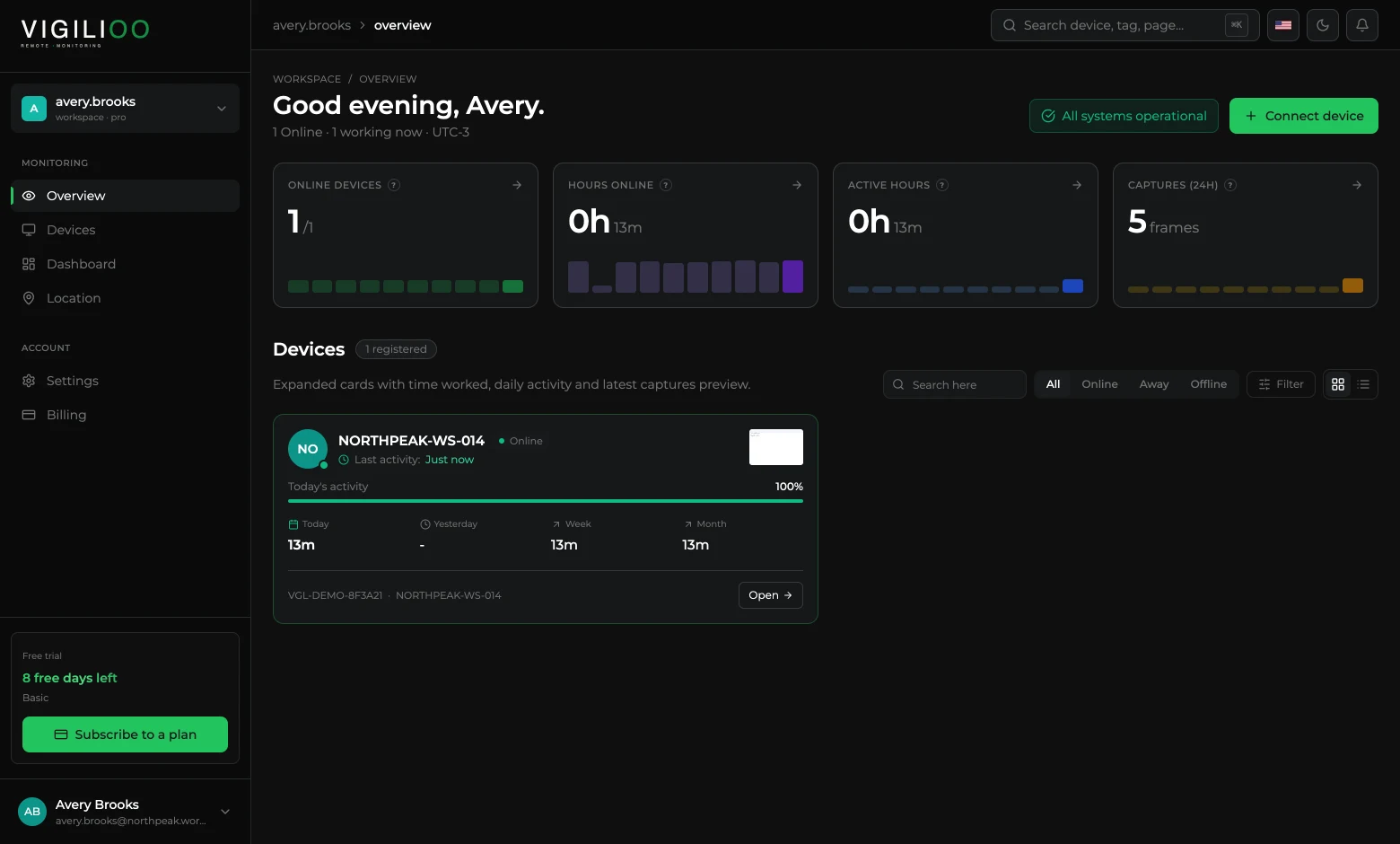
Sign in to the dashboard. The home screen shows the fleet summary and, in the top right corner, the button that generates the installer.
- 1Open the dashboard and stay on Overview.
- 2Click Connect device at the top of the screen.
- 3With no devices yet, the same flow opens from the Add first device button, in the middle of the list.
Step 2 — pick the platform and confirm the terms
The dialog asks for the device platform and two confirmations. The download button only unlocks once both are checked.
- 1Select Windows.
- 2Check the privacy terms confirmation.
- 3Check the statement that the device belongs to you or to your company.
- 4Click Download and wait for the installer to be generated.
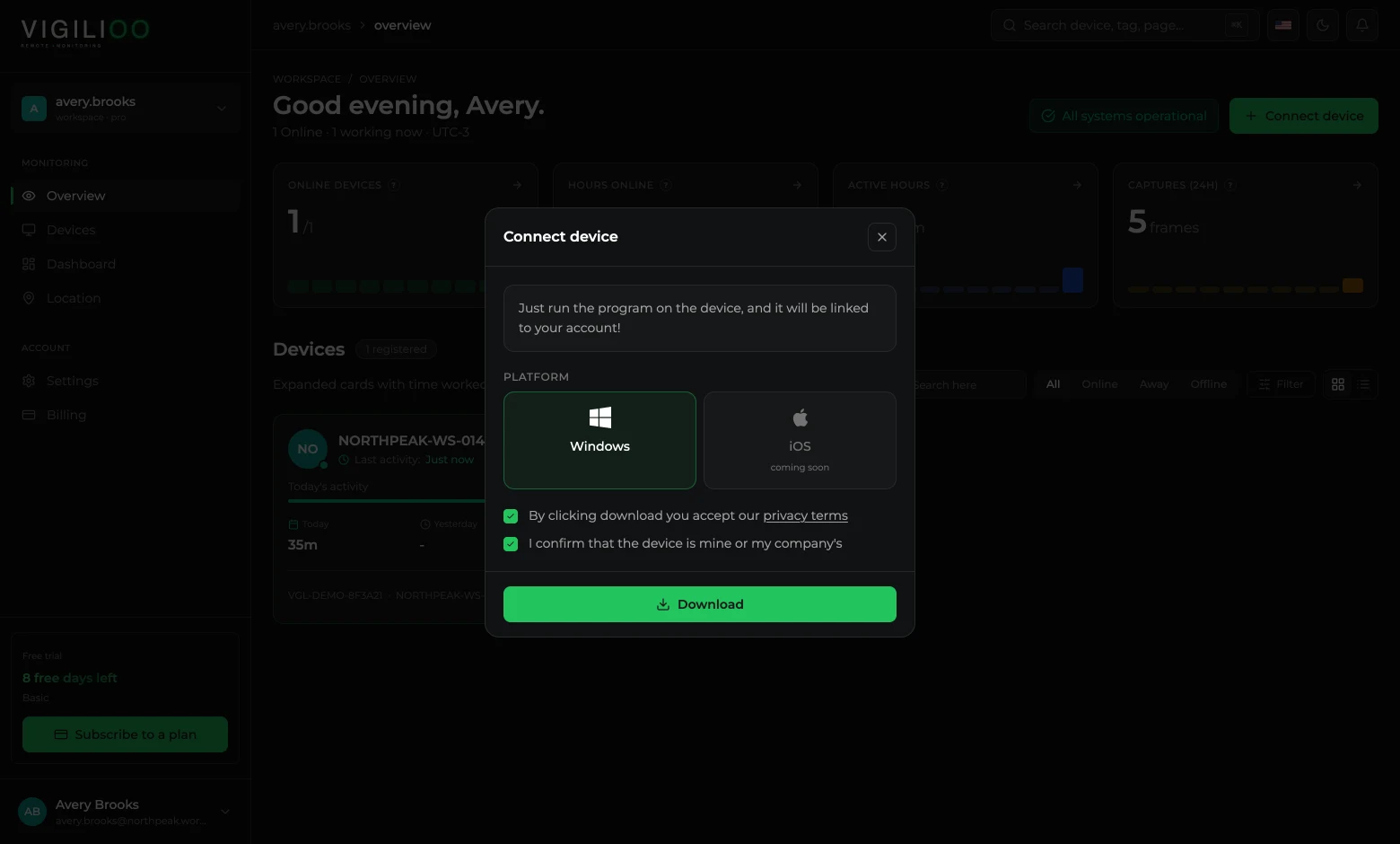
The installer is unique per account: once executed, the device is automatically linked to your workspace. Keep the file in a safe place and do not share it outside the company.
Step 3 — install on the computer
- 1Copy the installer to the machine that will be monitored.
- 2Run the file as administrator.
- 3Accept the Windows prompt and wait for it to finish — no restart needed.
- 4The agent starts as a service and reports on its own, including after the computer is turned off and on again.
Very restrictive antivirus
In fleets with a strict application policy, allow-list the agent before installing. Without that, the protection may stop the service on its first run.
Step 4 — confirm the device shows up
The agent's first contact happens within seconds. After that it reports every 15 seconds while the machine is on.
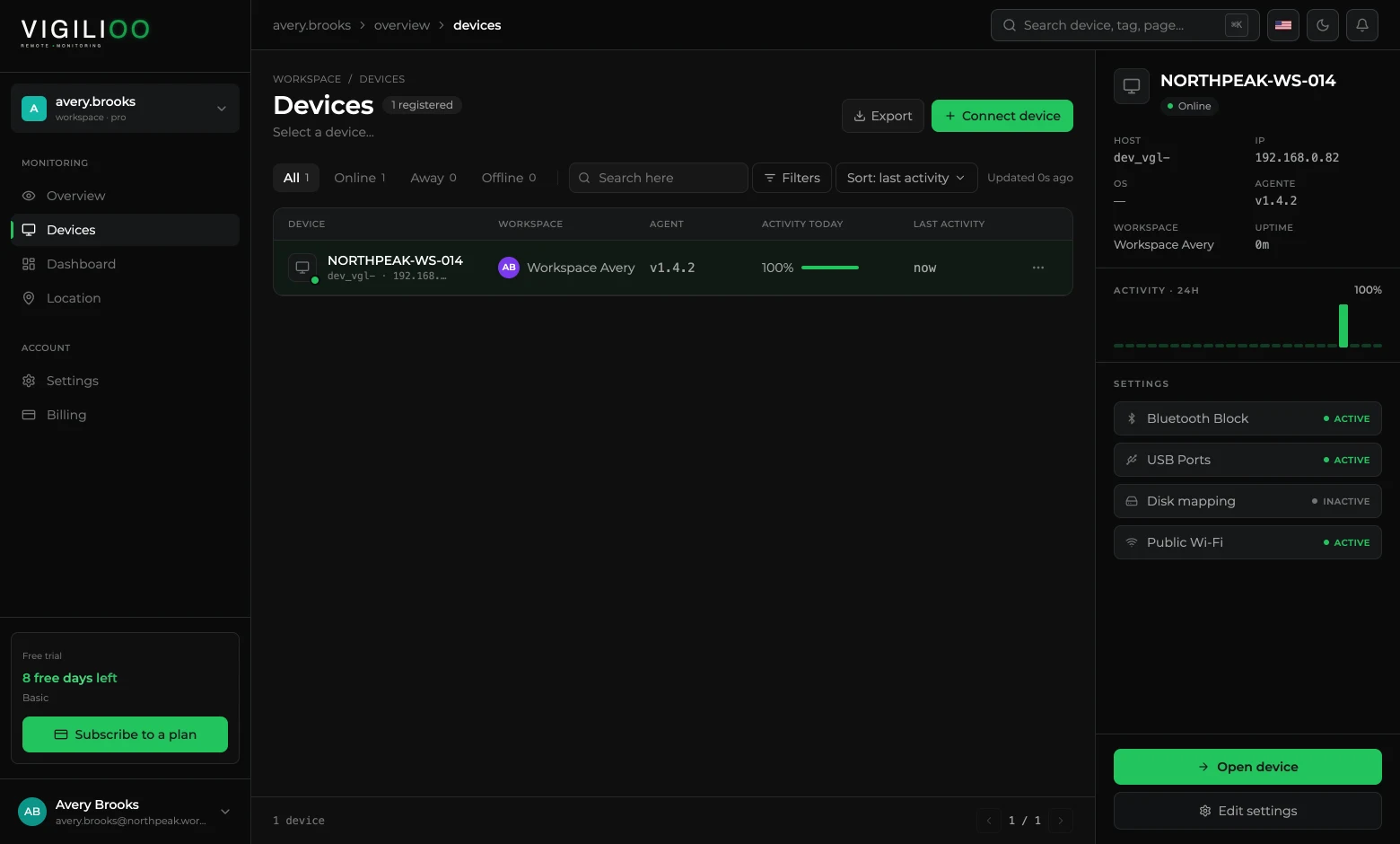
- 1Open Devices in the side menu.
- 2Confirm the machine name in the list and the Online status.
- 3Click the device to see host, IP, agent version and the policies already in force in the right-hand panel.
Frequently asked questions
- How long until the device shows up in the dashboard?
- Seconds. The agent makes first contact as soon as the installation finishes; if the machine is offline, it reports the moment the connection is back.
- Do I have to install on each computer by hand?
- Not necessarily. The same installer can be distributed through your fleet management tool (GPO, Intune or equivalent) and executed silently.
- Does the computer user notice the agent?
- The agent runs as a service, with no window. Transparency with the team is the company's responsibility and is what monitoring regulations expect.
Up next
Check a device's data
Where screen captures, activity, sites, typing and location of each machine live — tab by tab, with the dashboard screens.
Keep reading