Why these three
Firewall, email and corporate cloud are usually under control. What is left are the local exits: a flash drive in the USB port, a Bluetooth pairing with a personal phone and an open café network that takes the device out of the company perimeter.
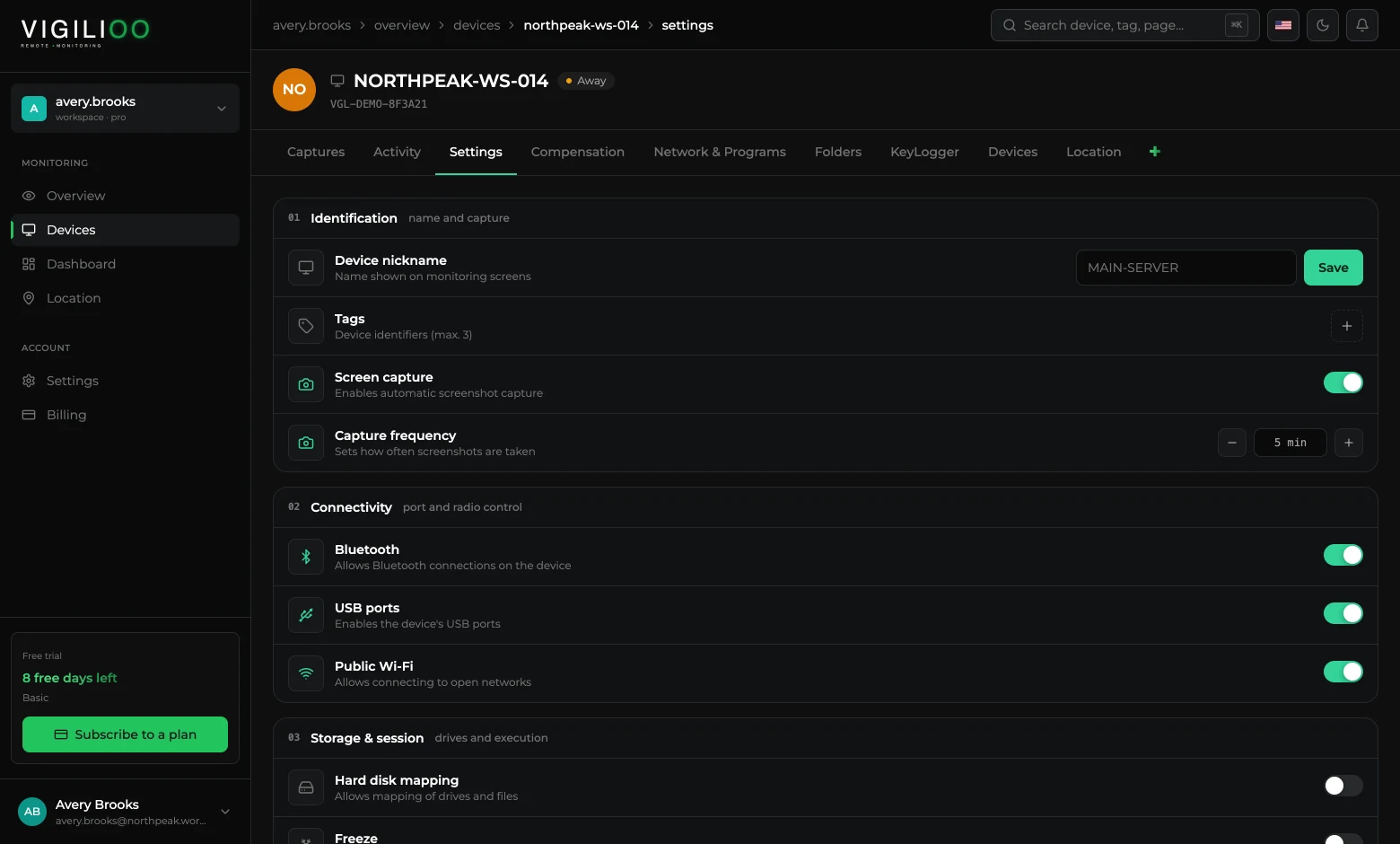
| Policy | What it prevents |
|---|---|
| USB ports | Copying files to flash drives and external disks, and running software from them. |
| Bluetooth | Pairing with phones, headsets and non-corporate keyboards. |
| Public Wi-Fi | Connecting to open networks, where traffic can be observed. |
How to apply it
- 1Open the device and go to the Settings tab.
- 2Find the 02 · Connectivity block.
- 3Turn off the switch for the port or radio you want to block.
- 4The policy reaches the device on the next cycle, with no restart.
Common choices
- Finance and legal: USB off on every machine, Bluetooth allowed only where there is corporate hardware.
- Field teams: public Wi-Fi allowed, but with a stricter site block list.
- Shared machine: all three off, with a temporary exception when needed.
The block applies per device. To standardise, use tags to group machines by team and repeat the same configuration in the group.
Frequently asked questions
- Can the user re-enable the port through Windows?
- No. The policy is enforced by the agent, which runs as a service, and is reapplied on every cycle even if someone changes the local setting.
- Does blocking USB disable keyboard and mouse?
- The purpose of the policy is data transfer. Even so, test on one machine before rolling it out — behaviour can vary with the peripheral manufacturer.
Up next
Blocking websites and programs
Two simple lists that define what does not open and what does not run on each company device.
Keep reading