How the lists work
There are two lists per device, in blocks 06 and 07 of the Settings tab. Blocked sites takes the domain; Blocked programs takes the executable name. Each item becomes a tag, and removing one is a single click.
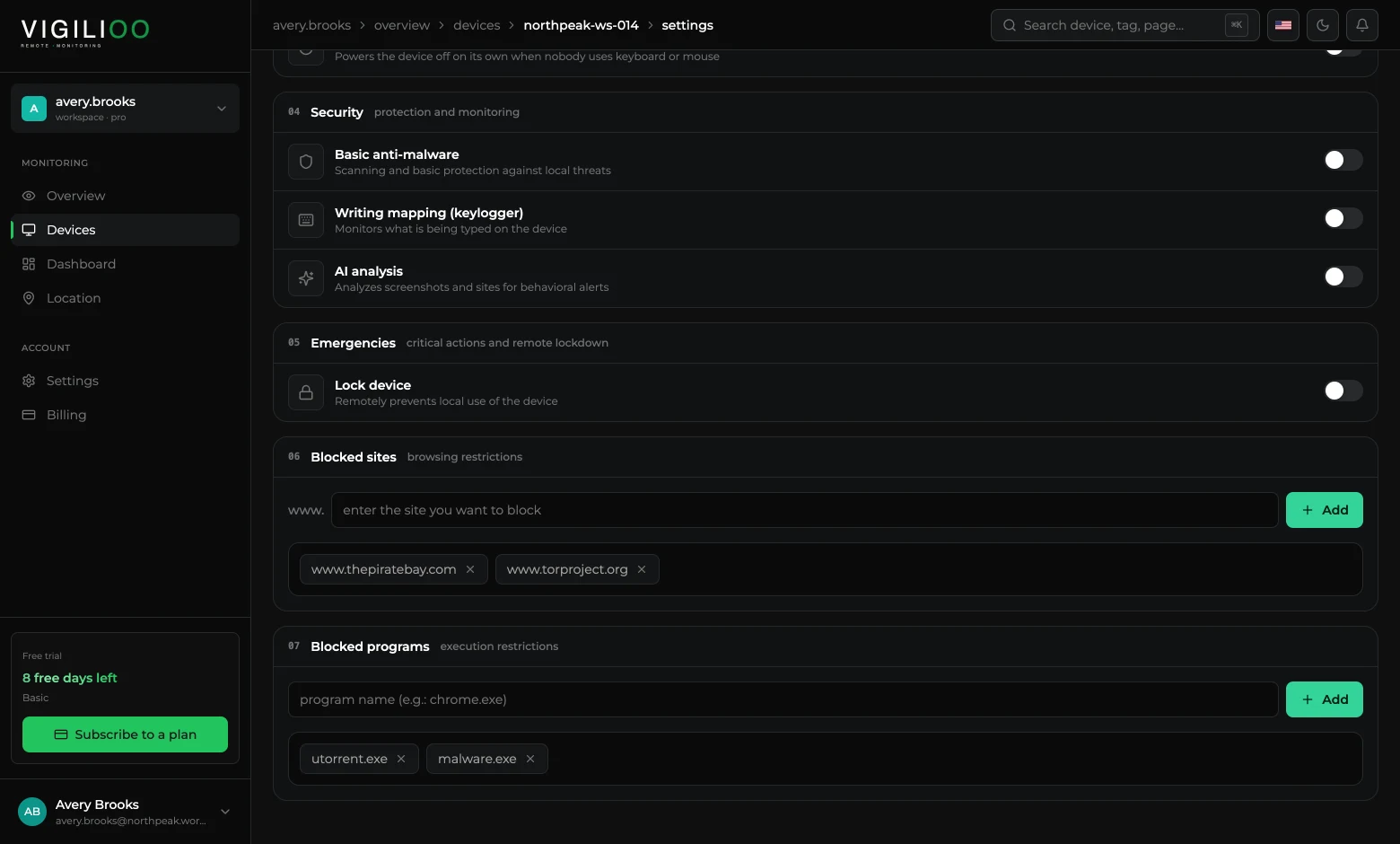
Registering a block
- 1Open the device and go to the Settings tab.
- 2Under Blocked sites, type the domain without the www and click Add.
- 3Under Blocked programs, type the executable name — utorrent.exe, for example — and click Add.
- 4The list syncs with the device on the next cycle.
What the person sees when blocked
In the browser, access is interrupted by a company notice rather than a system error page. That notice can carry your organisation's logo, colours and wording — the setting is in Customise the company notice.
An explained block reduces friction. A notice that says why access was stopped generates fewer support tickets than an error screen with no context.
Frequently asked questions
- Does the block work in any browser?
- Yes. The control is applied by the agent on the device itself, so it does not depend on an extension or on a specific browser.
- Can I block a whole category, such as social media?
- The lists are per domain and per executable. To cover a category, register the main domains and watch the Activity tab to find out what else is used.
Up next
Disk mapping
The policy that surfaces a device's folders and files in the dashboard — and allows downloading or deleting a file remotely.
Keep reading